
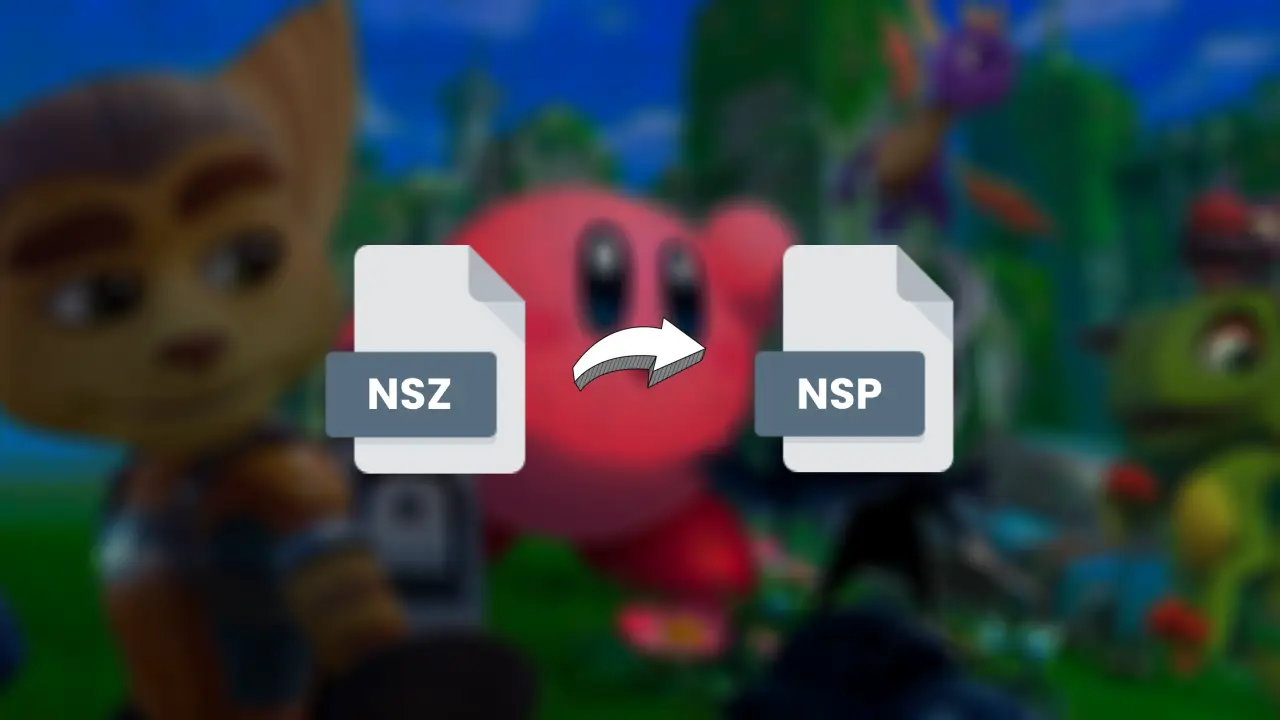
As a Nintendo Switch emulator enthusiast, you might have come across the NSZ file format and wondered how to make it compatible with your emulator, like Ryujinx or others.
Let me tell you, you’re not alone! Many of you have been reaching out, asking about the best way to handle NSZ files and convert them to NSP, the format your emulator recognizes without a hitch.
In this guide, I’ll walk you through everything you need to know about converting NSZ to NSP, using the best tools available. Whether you’re new to this or already tinkering with emulation, this detailed guide will ensure you’re equipped to handle any hiccup along the way.
What Are NSZ and NSP Files?
Before diving into the tools, let’s clarify what these file formats are:
- NSZ (Nintendo Switch Zip): A compressed version of NSP files designed to save storage space without losing data integrity. Think of it as a zipped file for your Switch games.
- NSP (Nintendo Submission Package): The uncompressed format most emulators like Ryujinx need to read and load a game.
Why convert NSZ to NSP? While NSZ is great for storage, emulators like Ryujinx require the uncompressed NSP format to properly run your games.
Top Tools for Converting NSZ to NSP
Now that you understand the “why,” let’s move on to the “how.” Below are two tried-and-tested tools you can use for the conversion.
1. Switch Army Knife (SAK)
Switch Army Knife, or SAK for short, is a versatile open-source tool designed for Nintendo Switch enthusiasts. It not only converts NSZ to NSP but also provides additional features like splitting game files and more.
Features:
- Intuitive graphical interface.
- Batch conversion support, so you can process multiple files at once.
- Offers additional functionality for managing your Switch files.
How to Use SAK to Convert NSZ to NSP
Let me guide you step-by-step so you can follow along even if this is your first time using such a tool.
1. Head over to the official SAK GitHub page and download the latest release for your operating system (Windows is recommended).
2. Extract the downloaded ZIP file and double-click the SAK.exe file to launch the application.
3. In the SAK interface, select the NSZ to NSP conversion option.
4. Click the “Browse” button and locate the NSZ file you want to convert.
5. Specify where you want the converted NSP file to be saved.
6. Hit the “Convert” button and SAK will begin decompressing the NSZ file into an NSP file.
Wait for the decompression. Once completed, navigate to the output folder and confirm the NSP file is there.
Pros:
- Beginner-friendly interface.
- Can handle large files efficiently.
Cons:
- Windows-only, so Mac and Linux users may need a virtual machine or additional software.
2. NSZ – Homebrew Compatible NSP/XCI Compressor/Decompressor
NSZ is an open-source tool that specializes in compressing and decompressing Nintendo Switch game files. While it’s more advanced and requires some command-line interaction, it’s incredibly lightweight and efficient.
Features:
- Designed specifically for NSZ compression and decompression.
- Compatible with both Windows and Linux systems.
- Highly efficient and fast processing times.
How to Use and Convert NSZ to NSP
If you’re comfortable with command-line tools, follow these steps:
1. Go to the official NSZ GitHub repository and download the latest version of the tool.
2. Extract the downloaded file to a folder on your system and ensure you have Python installed, as NSZ requires it to run.
3. Navigate to the folder where you extracted the NSZ tool.
Use the cd command to change the directory. For example:
cd C:\Users\YourName\Downloads\nsz4. Use the following command to decompress an NSZ file into NSP:
nsz.py -D path_to_your_nsz_fileReplace path_to_your_nsz_file with the actual path to your NSZ file.
5. By default, the NSP file will be saved in the same directory as the NSZ file.
Pros:
- Lightweight and doesn’t require installation.
- Works well on Linux systems.
Cons:
- Command-line interface may be intimidating for beginners.
How to Choose the Right Tool
Here’s a quick comparison to help you decide:
| Feature | SAK | NSZ |
|---|---|---|
| Ease of Use | User-friendly GUI | CLI-based, needs some experience |
| Compatibility | Windows only | Windows and Linux |
| Batch Processing | Yes | Yes |
| Additional Features | File splitting, joining | Focused on compression/decompression |
If you’re a beginner, I recommend starting with SAK. Advanced users or those on Linux may find NSZ more suitable.
Frequently Asked Questions (FAQs)
Is it legal to convert NSZ to NSP?
The legality depends on whether you own the original game. Always ensure you own the game legally before converting any files.
Which tool is faster?
Both tools offer excellent speed, but NSZ is slightly faster for advanced setups.
Can I automate batch conversions?
Yes, both tools support batch processing. Simply add multiple files and let the tools handle the rest.
Converting NSZ files to NSP doesn’t have to be daunting. Tools like Switch Army Knife (SAK) and NSZ make the process straightforward, whether you prefer a GUI or command-line interface.
Pick the one that suits your setup and experience level, and you’ll be playing your favorite games on Ryujinx in no time.
If you have any questions or run into issues, drop a comment below—I’m always here to help.
Leave a Reply